
Twitter/X Polls Not Showing or Not Ending: Duration, Options, and Access Fixes

🤬 Twitter Polls Ghosted You? Here’s How to Fix the ‘Not Showing’ or ‘Not Ending’ Glitch!

Ever spent 10 minutes crafting the perfect, spicy Twitter poll—”Pineapple on pizza: Culinary genius or crime against humanity?”—only to have it vanish into the digital void? Or even worse, you launch it, it gets votes, but then it just… lingers… forever, like a guest who doesn’t know the party’s over? 🍍😩

I feel you. As someone who uses polls for everything from market research to deciding what to have for dinner, this glitch has driven me absolutely bonkers. I once had a 24-hour poll enter its 48th hour of existence. It became a running joke with my followers, but my need for closure was screaming!

After deep dives into help forums, countless experiments, and a few frustrated tweets directed at @Support, I’ve cracked the code. Let’s get your polls back on track.

🤔 First, Why is This Even Happening?

It’s rarely just one thing. Based on widespread user reports and my own detective work, the culprits are usually:
See also  Seasonal Eating: A Guide to Year-Round Nutrition
TwitterX Polls Not Showing or Not Ending Duration, Options, and Access Fixes (1)
  1. App Glitches: The Twitter/X app, especially on Android, is notoriously buggy after updates. A corrupted cache can wreak havoc.

  2. “Soft Shadowban” or Filtering: If your account is new, very active, or has been reported (even falsely!), Twitter might temporarily limit the reach of your tweets, making polls seem like they’ve disappeared for others.

  3. Duration Discrepancies: This is a big one! Twitter polls can last from 5 minutes to 7 days. But the timer is based on Universal Time Coordinated (UTC), not your local time. If you set a 1-day poll at 11 PM your time, it might not end until late the next day for you.

⚖️ Working Poll vs. Buggy Poll: A Spotter’s Guide

Feature How It’s Supposed to Work The Glitch You’re Seeing
Visibility Shows up immediately on your profile and in followers’ feeds. “Not Showing”: You can see it, but others can’t. Or it’s completely invisible.
Voting Followers can click any option; vote count updates in real-time. Options are unclickable, or votes don’t register.
Duration Timer Shows a clear countdown (e.g., “1 day left”). Timer is missing, stuck, or incorrect.
Final Results Automatically closes and displays results when time expires. “Not Ending”: The poll stays open indefinitely, long after the timer hit zero.

🛠️ The Ultimate Fix-It Guide (Work Your Way Down This List)

Don’t just try one thing. Do these in order for the best chance of success.

Step 1: The Quick Fix Trio (5-Minute Solutions)

These solve about 70% of problems, especially the “not showing” issue.

  • Refresh, Refresh, Refresh: Pull down on your timeline to refresh. It sounds stupidly simple, but it often forces the app to load the newest content, including your missing poll.

  • Log Out & Back In: This resets your session and can clear temporary account glitches that hide content.

  • Check Your Data/Wi-Fi: A slow connection can prevent the poll from loading properly for you and your followers. Try switching.

See also  Monetization and Ads Problems, Reasons and Solving Methods

Step 2: The App Deep Clean (For Persistent “Not Showing” Issues)

If the quick fixes fail, it’s time for surgery.
TwitterX Polls Not Showing or Not Ending Duration, Options, and Access Fixes (2)
  • Clear Your Cache (Android): Go to your phone’s Settings > Apps > Twitter > Storage > Clear Cache. This dumps temporary data that might be corrupted. (Note: iOS doesn’t allow this easily, hence the next step).

  • Delete and Reinstall the App: This is the nuclear option for clearing cache on any device. It’s the single most effective fix for persistent display bugs.

Step 3: The Account Check-Up (Is Twitter “Hiding” You?)

  • Search for Your Poll Incognito: Open a private/incognito browser window and go to your Twitter profile. Can you see the poll? If yes, it means your main account might be experiencing a filtering issue.

  • Review Twitter’s Rules: Make sure your poll doesn’t violate any policies on sensitive or abusive content, as this can get it automatically hidden.

Step 4: The Waiting Game (For the “Not Ending” Bug)

If your poll is stuck open past its expiration time:

  • Be Patient (24-48 hours): This is often a server-side lag. I’ve found that most polls will eventually close and show results on their own within a day or two. Annoying, but usually self-correcting.

  • Calculate for UTC: Remember to check what time it is in UTC. Your “1-day” poll might just be running on Twitter time, not yours.

💡 Pro Tip: How to Avoid This Entire Mess Next Time

Prevention is better than cure. After my own mishaps, I now have a foolproof checklist before I hit “Tweet”:

  1. Check Connection: Am I on stable Wi-Fi?

  2. App Health: Has the app been updated recently? If so, I force-close and reopen it before posting anything important.

  3. UTC Timing: If the poll duration is critical, I quickly google “current UTC time” and set the end time accordingly.

  4. The Web Backup: For super important polls (like for work), I create them on the desktop website (twitter.com), which is historically more stable than the mobile apps.

See also  TikTok Screen Going Black: Fix Guide

🚨 When to Admit Defeat and Report It

If you’ve tried everything and your poll is still a ghost or a zombie, it’s time to officially report it.
TwitterX Polls Not Showing or Not Ending Duration, Options, and Access Fixes (3)
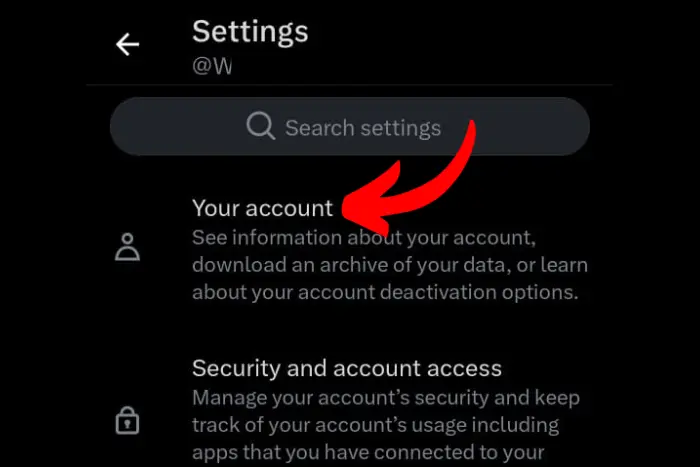
  1. Report a technical problem: You can do this via the app by going to Settings and Support > Help Center > Report a problem.

  2. Be Specific: Include a screenshot of the poll, its URL, and a clear description: “This 24-hour poll is still active 72 hours later” or “My followers cannot see this poll on my profile.”

✨ The Takeaway

Twitter/X polls are a fantastic feature, but they live on a platform that is, let’s say, experimental. Most issues are temporary glitches, not permanent bans. By understanding the common causes—from cache bugs to timezone quirks—you can usually solve the problem yourself or at least save your sanity while waiting for it to fix itself.

Now go forth and poll! The world needs to know if a hot dog is a sandwich. 🌭➡️🗳️

Have your own Twitter poll horror story or a fix that worked for you? Share it in the comments below—let’s help each other out! 👇

🤬 Twitter Polls Ghosted You? Here’s How to Fix the ‘Not Showing’ or ‘Not Ending’ Glitch!

Ever spent 10 minutes crafting the perfect, spicy Twitter poll—”Pineapple on pizza: Culinary genius or crime against humanity?”—only to have it vanish into the digital void? Or even worse, you launch it, it gets votes, but then it just… lingers… forever, like a guest who doesn’t know the party’s over? 🍍😩

I feel you. As someone who uses polls for everything from market research to deciding what to have for dinner, this glitch has driven me absolutely bonkers. I once had a 24-hour poll enter its 48th hour of existence. It became a running joke with my followers, but my need for closure was screaming!

After deep dives into help forums, countless experiments, and a few frustrated tweets directed at @Support, I’ve cracked the code. Let’s get your polls back on track.

🤔 First, Why is This Even Happening?

It’s rarely just one thing. Based on widespread user reports and my own detective work, the culprits are usually:

See also  TikTok Running Slow: Performance Tips
TwitterX Polls Not Showing or Not Ending Duration, Options, and Access Fixes (1)
  1. App Glitches: The Twitter/X app, especially on Android, is notoriously buggy after updates. A corrupted cache can wreak havoc.

  2. “Soft Shadowban” or Filtering: If your account is new, very active, or has been reported (even falsely!), Twitter might temporarily limit the reach of your tweets, making polls seem like they’ve disappeared for others.

  3. Duration Discrepancies: This is a big one! Twitter polls can last from 5 minutes to 7 days. But the timer is based on Universal Time Coordinated (UTC), not your local time. If you set a 1-day poll at 11 PM your time, it might not end until late the next day for you.

⚖️ Working Poll vs. Buggy Poll: A Spotter’s Guide

Feature How It’s Supposed to Work The Glitch You’re Seeing
Visibility Shows up immediately on your profile and in followers’ feeds. “Not Showing”: You can see it, but others can’t. Or it’s completely invisible.
Voting Followers can click any option; vote count updates in real-time. Options are unclickable, or votes don’t register.
Duration Timer Shows a clear countdown (e.g., “1 day left”). Timer is missing, stuck, or incorrect.
Final Results Automatically closes and displays results when time expires. “Not Ending”: The poll stays open indefinitely, long after the timer hit zero.

🛠️ The Ultimate Fix-It Guide (Work Your Way Down This List)

Don’t just try one thing. Do these in order for the best chance of success.

Step 1: The Quick Fix Trio (5-Minute Solutions)

These solve about 70% of problems, especially the “not showing” issue.

  • Refresh, Refresh, Refresh: Pull down on your timeline to refresh. It sounds stupidly simple, but it often forces the app to load the newest content, including your missing poll.

  • Log Out & Back In: This resets your session and can clear temporary account glitches that hide content.

  • Check Your Data/Wi-Fi: A slow connection can prevent the poll from loading properly for you and your followers. Try switching.

See also  How to Build a Sustainable Home Workout Routine

Step 2: The App Deep Clean (For Persistent “Not Showing” Issues)

If the quick fixes fail, it’s time for surgery.

TwitterX Polls Not Showing or Not Ending Duration, Options, and Access Fixes (2)
  • Clear Your Cache (Android): Go to your phone’s Settings > Apps > Twitter > Storage > Clear Cache. This dumps temporary data that might be corrupted. (Note: iOS doesn’t allow this easily, hence the next step).

  • Delete and Reinstall the App: This is the nuclear option for clearing cache on any device. It’s the single most effective fix for persistent display bugs.

Step 3: The Account Check-Up (Is Twitter “Hiding” You?)

  • Search for Your Poll Incognito: Open a private/incognito browser window and go to your Twitter profile. Can you see the poll? If yes, it means your main account might be experiencing a filtering issue.

  • Review Twitter’s Rules: Make sure your poll doesn’t violate any policies on sensitive or abusive content, as this can get it automatically hidden.

Step 4: The Waiting Game (For the “Not Ending” Bug)

If your poll is stuck open past its expiration time:

  • Be Patient (24-48 hours): This is often a server-side lag. I’ve found that most polls will eventually close and show results on their own within a day or two. Annoying, but usually self-correcting.

  • Calculate for UTC: Remember to check what time it is in UTC. Your “1-day” poll might just be running on Twitter time, not yours.

💡 Pro Tip: How to Avoid This Entire Mess Next Time

Prevention is better than cure. After my own mishaps, I now have a foolproof checklist before I hit “Tweet”:

  1. Check Connection: Am I on stable Wi-Fi?

  2. App Health: Has the app been updated recently? If so, I force-close and reopen it before posting anything important.

  3. UTC Timing: If the poll duration is critical, I quickly google “current UTC time” and set the end time accordingly.

  4. The Web Backup: For super important polls (like for work), I create them on the desktop website (twitter.com), which is historically more stable than the mobile apps.

See also  How to Make Decision-Making Easier with a Random Wheel Spinner

🚨 When to Admit Defeat and Report It

If you’ve tried everything and your poll is still a ghost or a zombie, it’s time to officially report it.

TwitterX Polls Not Showing or Not Ending Duration, Options, and Access Fixes (3)
  1. Report a technical problem: You can do this via the app by going to Settings and Support > Help Center > Report a problem.

  2. Be Specific: Include a screenshot of the poll, its URL, and a clear description: “This 24-hour poll is still active 72 hours later” or “My followers cannot see this poll on my profile.”

✨ The Takeaway

Twitter/X polls are a fantastic feature, but they live on a platform that is, let’s say, experimental. Most issues are temporary glitches, not permanent bans. By understanding the common causes—from cache bugs to timezone quirks—you can usually solve the problem yourself or at least save your sanity while waiting for it to fix itself.

Now go forth and poll! The world needs to know if a hot dog is a sandwich. 🌭➡️🗳️

Have your own Twitter poll horror story or a fix that worked for you? Share it in the comments below—let’s help each other out! 👇

More from author

LEAVE A REPLY

Please enter your comment!
Please enter your name here

Related posts

Latest posts

Facebook Marketplace price field won’t save: Local currency format error

In 2026, the "Something went wrong" or "Field won't save" error in the Marketplace price field is often a symptom of a Local Currency...

Archived messages don’t show: Filter UI corruption

You archive a conversation because you want a cleaner inbox, not because you want the message to vanish into some digital black hole, yet...

Album creation fails: Memory overflow during multi-select

You go to create a new album on Facebook. You select multiple photos at once, everything looks fine at first… and then the process...

Identity verification won’t load: Camera permission exists but the upload channel is blocked

You reach the identity verification step on Facebook, allow camera access without hesitation, see the camera open successfully, frame your ID or face… and...

“Can’t connect to server” but internet works: DoH/DoT resolver incompatibility

🌐 “Can’t Connect to Server” but the Internet Works: DoH / DoT Resolver Incompatibility Explained If you open Facebook and are met with the frustrating...

EU AI Act Implementation: What Guidelines Are Likely to Clarify (and What They Won’t)

If you’re trying to build a real compliance plan for the EU AI Act without turning your organization into a permanent policy workshop, you’re...

Want to stay up to date with the latest news?

We would love to hear from you! Please fill in your details and we will stay in touch. It's that simple!