Notifications Not Coming Through: Device, App, and Account Settings Fix

Notifications Not Coming Through? Fix Device, App, and Account Settings 🔔

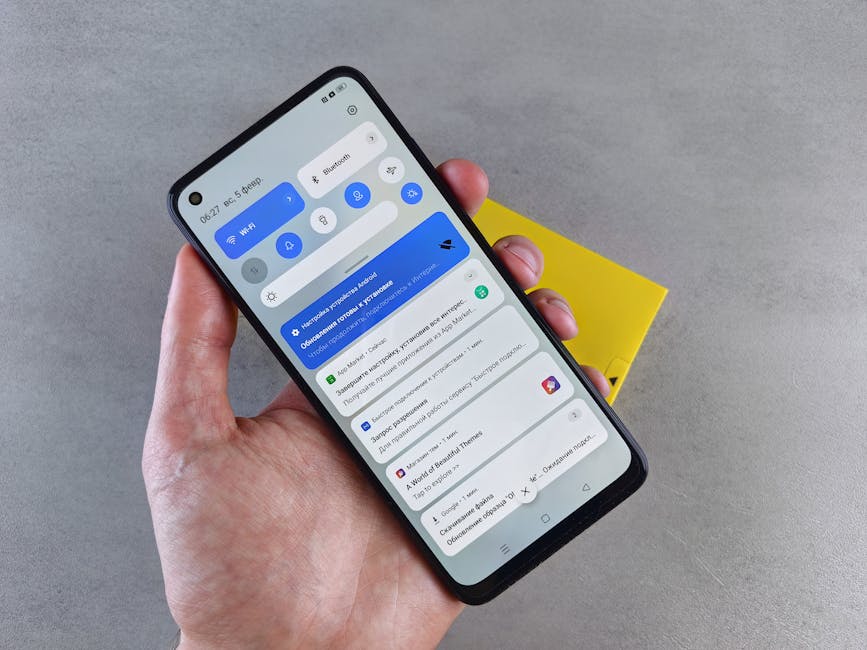
Ever missed an important message because your phone decided to play hide-and-seek with notifications? 😤 You’re not alone! Notification issues are one of the most frustrating tech problems we face daily. Whether it’s WhatsApp messages, email alerts, or social media pings, when notifications fail, it feels like your device is giving you the silent treatment.

In this comprehensive guide, we’ll walk through all possible fixes for notification problems across devices, apps, and account settings. By the end, you’ll be a notification ninja, never missing another important alert again! 🚀

Frustrated person looking at phone with no notifications

Why Are My Notifications Not Working? 🤔

Before we dive into fixes, let’s understand why notifications might fail. There are three main areas where things can go wrong:

  • Device-level issues: System settings, battery optimization, or Do Not Disturb mode
  • App-specific problems: Notification permissions or app bugs
  • Account settings: Sync issues or notification preferences in your accounts

I remember when I missed my best friend’s wedding update because Instagram notifications stopped working. Turns out, a simple app update was all it needed! Let’s make sure you don’t face similar embarrassing situations. 😅

See also  Reporting Harassment/Abuse on Twitter/X: Evidence, Reporting, and Legal Path

Device-Level Notification Fixes 📱

1. Check Do Not Disturb and Silent Mode

This is the most common culprit! Your phone might be in Do Not Disturb (DND) or silent mode. Here’s how to check:

Pro Tip: On iPhones, check for the moon icon in the status bar. On Android, look for a circle with a line through it or the word “Silent.”

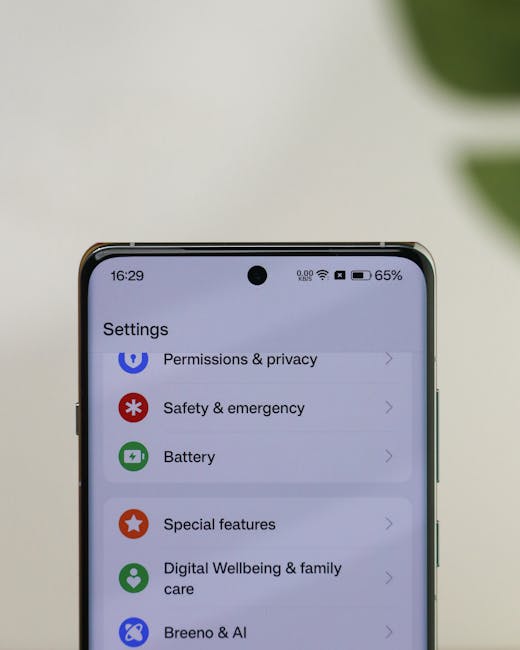
2. Verify Notification Settings

Both iOS and Android have system-wide notification controls:

Platform Path to Notification Settings
iOS Settings > Notifications
Android Settings > Apps & notifications > Notifications

3. Battery Optimization Might Be Too Aggressive

Modern smartphones try to save battery by limiting background activity, which can sometimes kill notifications. Here’s how to whitelist important apps:

Smartphone battery optimization settings

App-Specific Notification Solutions 🛠️

1. Check App Notification Permissions
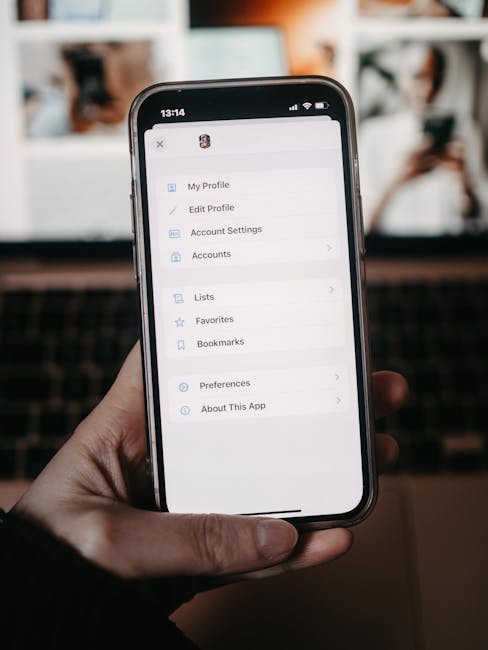
Each app needs permission to send notifications. Here’s how to check:

[App Notification Permissions Flow]
1. Open Settings
2. Go to Apps/Applications
3. Select the problematic app
4. Tap Notifications
5. Ensure all notification types are enabled

2. Update or Reinstall the App
Buggy app versions can break notifications. Try:

  • Updating to the latest version from the App Store/Play Store
  • Uninstalling and reinstalling the app (don’t worry, your data is usually safe!)

3. Check In-App Notification Settings

Many apps have their own notification controls separate from system settings. For example:

  • WhatsApp: Settings > Notifications
  • Gmail: Settings > [your account] > Notifications
  • Facebook: Settings & Privacy > Settings > Notifications

App notification settings on smartphone

Account and Sync Issues 🔄

1. Check Internet Connection

Notifications need an active internet connection. Try:

  • Switching between Wi-Fi and mobile data
  • Toggling Airplane mode on/off
See also  How to Negotiate a Higher Salary at Your Job

2. Verify Sync Settings

For email and messaging apps, sync must be enabled:

App Type Sync Setting Location
Email (Gmail) Settings > [your account] > Sync Gmail
Messaging (WhatsApp) Settings > Chats > Chat backup

Advanced Troubleshooting 🧑‍💻

If basic fixes don’t work, try these advanced steps:

  1. Clear app cache: Settings > Apps > [app name] > Storage > Clear Cache
  2. Reset app preferences: (Android) Settings > System > Reset > Reset app preferences
  3. Check for system updates: An outdated OS can cause notification issues

Did You Know? According to Android Central, about 30% of notification issues are resolved simply by restarting the device!

When All Else Fails… 🆘

If you’ve tried everything and notifications still aren’t working:

  • Contact the app developer’s support team
  • Visit your device manufacturer’s support forum
  • As a last resort, consider a factory reset (back up your data first!)
Person contacting tech support

Final Thoughts: Stay Notified! 🎯

Notification issues can be frustrating, but they’re usually easy to fix once you know where to look. Start with the simple solutions (check DND mode, restart your phone) before moving to more complex troubleshooting. Remember, technology should work for you, not against you!

What’s the most important notification you’ve ever missed? Share your horror stories in the comments below! 👇 And if this guide helped you, pay it forward by sharing it with someone who’s constantly complaining about missed notifications. 😉

Notifications Not Coming Through? Fix Device, App, and Account Settings 🔔

Ever missed an important message because your phone decided to play hide-and-seek with notifications? 😤 You’re not alone! Notification issues are one of the most frustrating tech problems we face daily. Whether it’s WhatsApp messages, email alerts, or social media pings, when notifications fail, it feels like your device is giving you the silent treatment.

In this comprehensive guide, we’ll walk through all possible fixes for notification problems across devices, apps, and account settings. By the end, you’ll be a notification ninja, never missing another important alert again! 🚀

Frustrated person looking at phone with no notifications

Why Are My Notifications Not Working? 🤔

Before we dive into fixes, let’s understand why notifications might fail. There are three main areas where things can go wrong:

  • Device-level issues: System settings, battery optimization, or Do Not Disturb mode
  • App-specific problems: Notification permissions or app bugs
  • Account settings: Sync issues or notification preferences in your accounts

I remember when I missed my best friend’s wedding update because Instagram notifications stopped working. Turns out, a simple app update was all it needed! Let’s make sure you don’t face similar embarrassing situations. 😅

See also  Reporting Harassment/Abuse on Twitter/X: Evidence, Reporting, and Legal Path

Device-Level Notification Fixes 📱

1. Check Do Not Disturb and Silent Mode

This is the most common culprit! Your phone might be in Do Not Disturb (DND) or silent mode. Here’s how to check:

Pro Tip: On iPhones, check for the moon icon in the status bar. On Android, look for a circle with a line through it or the word “Silent.”

2. Verify Notification Settings

Both iOS and Android have system-wide notification controls:

Platform Path to Notification Settings
iOS Settings > Notifications
Android Settings > Apps & notifications > Notifications

3. Battery Optimization Might Be Too Aggressive

Modern smartphones try to save battery by limiting background activity, which can sometimes kill notifications. Here’s how to whitelist important apps:

Smartphone battery optimization settings

App-Specific Notification Solutions 🛠️

1. Check App Notification Permissions

Each app needs permission to send notifications. Here’s how to check:

[App Notification Permissions Flow]
1. Open Settings
2. Go to Apps/Applications
3. Select the problematic app
4. Tap Notifications
5. Ensure all notification types are enabled

2. Update or Reinstall the App

Buggy app versions can break notifications. Try:

  • Updating to the latest version from the App Store/Play Store
  • Uninstalling and reinstalling the app (don’t worry, your data is usually safe!)

3. Check In-App Notification Settings

Many apps have their own notification controls separate from system settings. For example:

  • WhatsApp: Settings > Notifications
  • Gmail: Settings > [your account] > Notifications
  • Facebook: Settings & Privacy > Settings > Notifications

App notification settings on smartphone

Account and Sync Issues 🔄

1. Check Internet Connection

Notifications need an active internet connection. Try:

  • Switching between Wi-Fi and mobile data
  • Toggling Airplane mode on/off
See also  How to Collaborate Across Time Zones Seamlessly

2. Verify Sync Settings

For email and messaging apps, sync must be enabled:

App Type Sync Setting Location
Email (Gmail) Settings > [your account] > Sync Gmail
Messaging (WhatsApp) Settings > Chats > Chat backup

Advanced Troubleshooting 🧑‍💻

If basic fixes don’t work, try these advanced steps:

  1. Clear app cache: Settings > Apps > [app name] > Storage > Clear Cache
  2. Reset app preferences: (Android) Settings > System > Reset > Reset app preferences
  3. Check for system updates: An outdated OS can cause notification issues

Did You Know? According to Android Central, about 30% of notification issues are resolved simply by restarting the device!

When All Else Fails… 🆘

If you’ve tried everything and notifications still aren’t working:

  • Contact the app developer’s support team
  • Visit your device manufacturer’s support forum
  • As a last resort, consider a factory reset (back up your data first!)
Person contacting tech support

Final Thoughts: Stay Notified! 🎯

Notification issues can be frustrating, but they’re usually easy to fix once you know where to look. Start with the simple solutions (check DND mode, restart your phone) before moving to more complex troubleshooting. Remember, technology should work for you, not against you!

What’s the most important notification you’ve ever missed? Share your horror stories in the comments below! 👇 And if this guide helped you, pay it forward by sharing it with someone who’s constantly complaining about missed notifications. 😉

More from author

LEAVE A REPLY

Please enter your comment!
Please enter your name here

Related posts

Latest posts

Double Audio Problem on TikTok Videos

Double Audio Problem on TikTok Videos: Causes, Fixes, and Expert Tips 🎧🔁 You record a TikTok, add music, and get ready to post — but...

Music Restrictions on TikTok Business Accounts

Music Restrictions on TikTok Business Accounts: The Full 2025 Guide 🎵💼📱✨ You’ve finally switched to a TikTok Business Account — ready to boost your brand,...

My TikTok Account Shows Wrong Country

My TikTok Account Shows Wrong Country: Why It Happens and How to Fix It 🌍📱 Imagine this: you open TikTok, but instead of seeing local...

TikTok Screen Going Black: Fix Guide

When TikTok Turns Into a Black Hole 🌌 You’re scrolling through TikTok, laughing at memes 😂, watching tutorials 🎨, or maybe even going live 🎥…...

TikTok Friend Matching Errors and Solving Methods

TikTok Friend Matching Errors and Solving Methods 🤝❌ One of TikTok’s coolest social features is Friend Matching — it helps you connect with classmates, coworkers,...

Missing Out on TikTok Trends Problem

Missing Out on TikTok Trends Problem & How to Solve It 🎵🔥 Trends are the fuel that powers TikTok. From catchy sounds to viral challenges,...

Want to stay up to date with the latest news?

We would love to hear from you! Please fill in your details and we will stay in touch. It's that simple!